
Organizations Guide
Set up your organization without over-configuring it.
This page matches the current Connections and Organization panels in the DoWhiz dashboard. The correct sequence is small: connect Notion, create or join the organization, then configure leader, task board, and cron only when you actually need them.
The organization leader's Notion connection is used for TPM operations. If TPM is reading or writing in the wrong workspace, check the leader first.
Before you start
- Sign in at the dashboard.
- Open the Connections section before touching organization settings.
- Have the leader's DoWhiz Account ID ready if TPM should run through another member's account.
- Do not set recurring cron until one manual TPM sync already works.
1. Connect Notion
Go to Connections and click Notion. This should happen before organization TPM setup, because every later step depends on a valid Notion connection.
- Authorize the correct Notion workspace.
- Return to the dashboard and confirm the connection completed.
- Leave Discord, Slack, and GitHub for later unless you already need them.
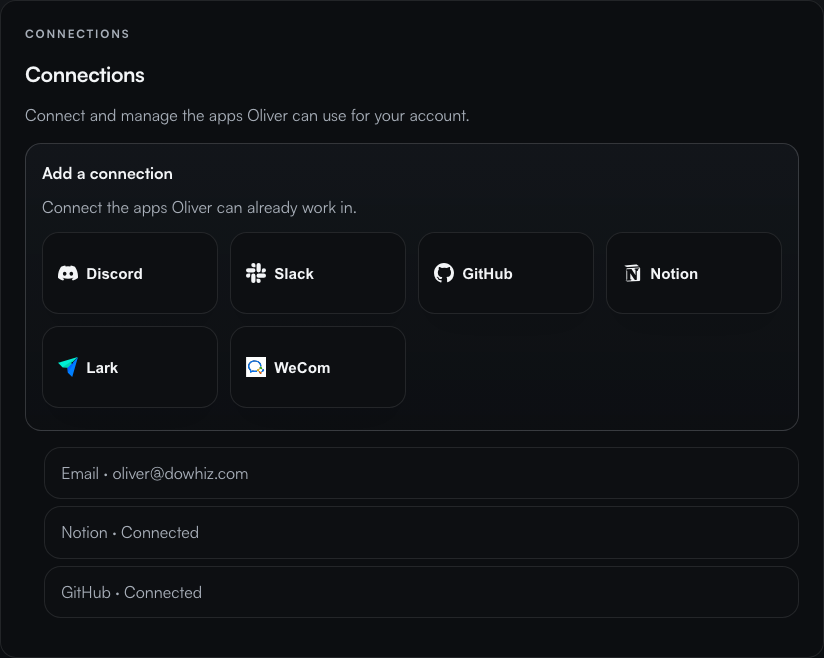
Organizations control shared TPM behavior, but the actual workspace access still comes from a member's Notion authorization.
2. Create or join an organization
In the Organization section, join an existing organization if it already exists. Create a new one only if your team does not already have an organization record.
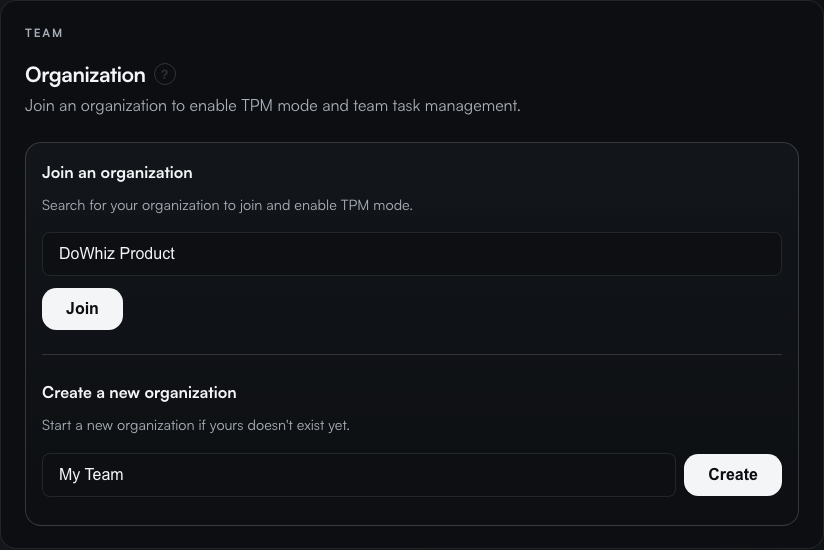
Join existing
- Search by organization name.
- Select the correct result.
- Click Join.
Create new
- Enter the organization name in
Organization name. - Click Create.
- Use the advanced settings only after the organization exists.
3. Configure leader, task board, and cron
After you are inside an organization, open Advanced. That panel contains the TPM controls that matter. Most teams only need part of it.
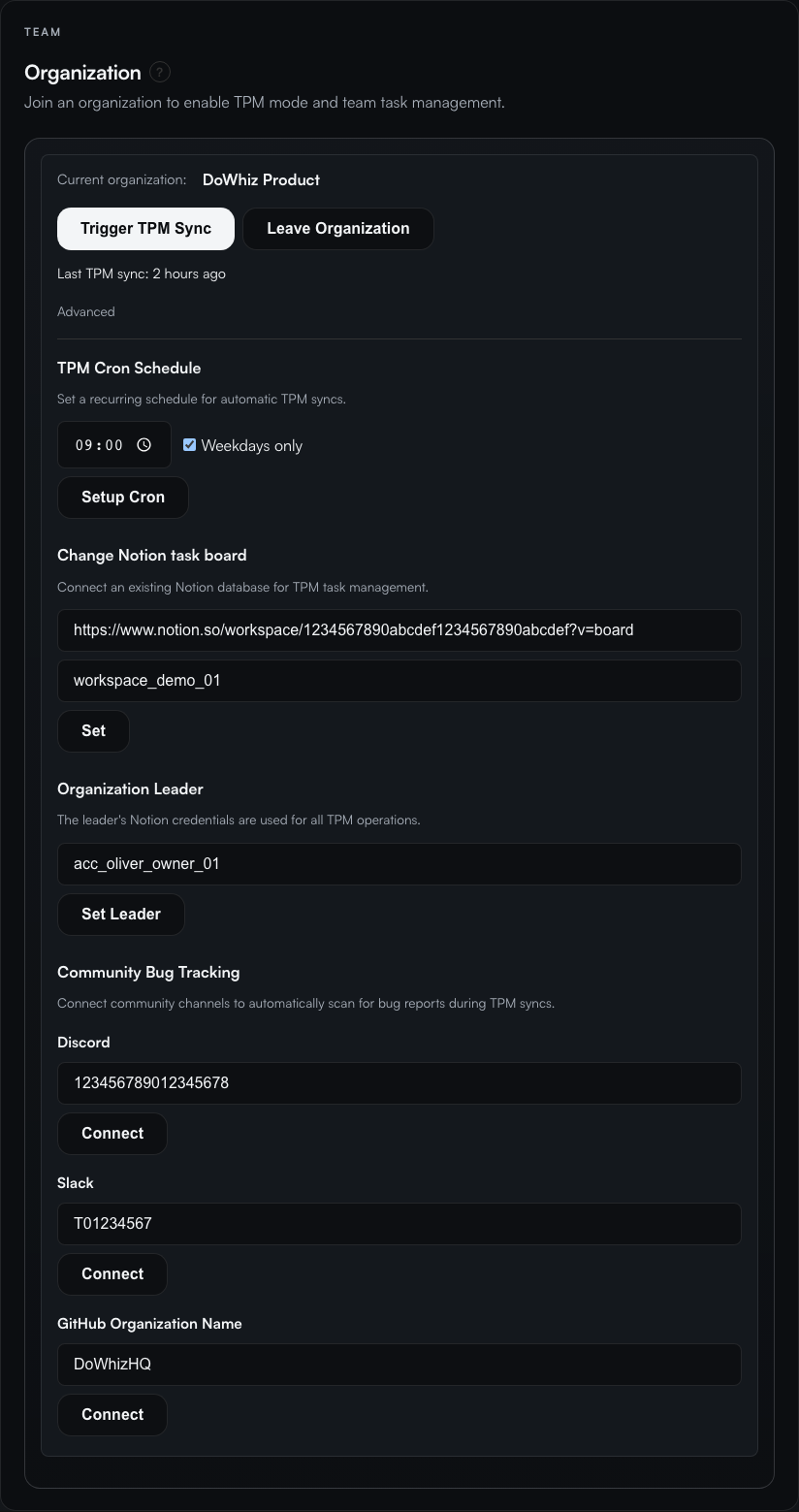
| Setting | Use it when | What to enter |
|---|---|---|
| Organization Leader | TPM should run through a specific member's Notion connection. | The leader's DoWhiz Account ID. |
| Change Notion task board | You already have an existing Notion database for TPM. | A full Notion database URL or the raw database ID. Workspace ID is optional. |
| Setup Cron | Manual sync already works and you want recurring TPM sync. | A local time and whether the schedule should be weekdays only. |
Use Set Leader only if TPM should run through a different member. If you pick the wrong person, TPM will use the wrong Notion credentials.
The task board field accepts either a full Notion database URL or a raw database ID. Use it when switching to an existing database, not as a mandatory first step.
Treat cron as the last step. First verify that Trigger TPM Sync works with the right workspace and task board.
4. Optional organization integrations
These fields are optional. They add more context for TPM, but they are not required for the basic organization setup.
- Discord: enter the server's
Server ID. - Slack: enter the workspace's
Workspace ID. - GitHub: enter the
GitHub Organization Name. It is case-sensitive.
Troubleshooting
I cannot see the cron controls.
Setup Cron only appears when no leader is set, or when your current account is the organization leader. If someone else is leader, they need to configure cron.
The Notion board field rejects my link.
Paste an actual Notion database URL or the raw 32-character database ID. The field is not for a page URL that does not point to a database.
TPM is using the wrong Notion workspace.
Check the current organization leader first. TPM follows the leader's Notion connection, not necessarily the member who clicked the button.
My team already has an organization.
Do not create a duplicate. Use Join organization, search by name, and join the existing record.